Drop the playback resolution first
The fastest fix is the dropdown under the Program Monitor. Set playback resolution to 1/2 or 1/4.
Playback resolution only changes what the monitor decodes during playback. Your footage, your cut and your export are untouched, and pause resolution stays at Full, so the frame snaps sharp the moment you stop. Editing 4K at 1/4 resolution is standard practice, not a compromise. While you're there, leave High Quality Playback off. Adobe's own docs note it costs playback performance, and it buys nothing while you're cutting.
Render the heavy sections
Render In to Out turns the sections Premiere can't play in real time into preview files it can.
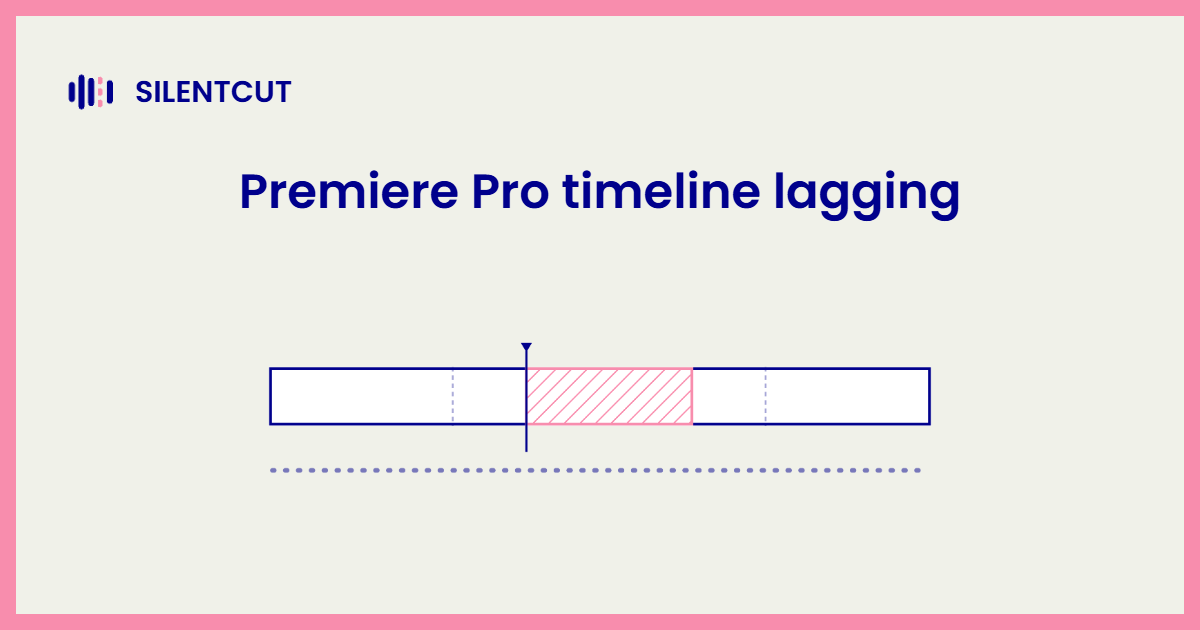
Mark In and Out around the stuttering stretch, then choose Render In to Out from the Sequence menu. The colored bar above the timeline Premiere Pro draws is the tell. Sections that need rendering play from previews once you've built them, and they stay rendered until you change the clips underneath. Rendering is the fix for effect-heavy stretches you're done fiddling with, and a waste of time on sections still in flux.
Cut the decode load with proxies
Proxies replace heavy source files with lightweight editing copies, and they're the structural fix for footage your machine will never play raw.
Premiere's proxy workflow builds the small copies, keeps them attached to the originals, and lets you toggle between them with a button. You cut against the proxies, and the export renders from the full-resolution originals, so nothing you ship gets softer. If your camera records long-GOP 4K and your timeline stutters on straight cuts, this is your fix, not another setting.
Clear the media cache
A stale media cache produces exactly the kind of mystery lag that survives every other fix.
Premiere keeps accelerator files for every piece of media it touches, and the pile grows for months. Go to Preferences, then Media Cache, and use the Delete button to remove the cache files. Premiere rebuilds what the open project needs. Old caches on slow or nearly full drives are a classic source of stutter that has nothing to do with your footage.
Check the renderer, then the hardware
If the renderer is set to software, nothing else on this page will save you.
Open Project Settings and check that the Renderer is Mercury Playback Engine GPU Acceleration, not the software option. The GPU renderer is what makes effects, scaling and color processing playable. Beyond that, lag that survives everything above is a hardware conversation. The Premiere Pro system requirements post has the full table, and the short version is 32 GB of RAM for 4K, 8 GB of GPU memory, and media on a fast drive that isn't also holding the cache.
Effects and plugins drag playback. The edit drags you.
Effect-heavy clips are the last common lag source, and knowing which additions cost render time is the skill.
Stacked effects have to compute every frame, and third-party Premiere Pro plugins range from free at playback to brutal. Toggle effects off globally to test whether they're your bottleneck, and render the sections where the answer is yes. Panels that leave plain cuts behind cost nothing, which is exactly how SilentCut for Premiere Pro works. Silence Remover drops regular edit points on the timeline, no effects, no render load, just the dead air gone. Lag steals seconds per scrub. The cleanup pass steals evenings, and it's the half a faster machine can't fix.