Find the recording file first
Zoom saves local recordings to the Documents\Zoom folder, with the video as an MP4 and an audio-only M4A beside it.
The fastest route is through the Zoom client itself. Meetings, then Recorded, then Open, and you're standing in the right folder. Cloud recordings live in the web portal instead, downloadable per meeting. One trap worth knowing. Zoom converts the local recording after the meeting ends, so a file that seems missing right after a long call is usually still converting. Let it finish before you move anything.
Trim the ends, then decide where to edit
Zoom itself only trims. Cloud recordings take a playback-range trim in the portal, and everything past that needs a real editor.
The trim covers the classic case, cutting the three minutes of people joining and the goodbyes, without touching the file. Local recordings don't even get that, there's no editing inside Zoom at all. So the decision is simple. Sharing a meeting internally, the cloud trim is plenty. Turning the recording into content, a webinar cut, a training video, social clips, means pulling the MP4 into an editor for a real pass.
Cut the filler and the silence
A Zoom recording is the most silence-heavy footage you will ever edit, and cutting what shouldn't be there is most of the job.
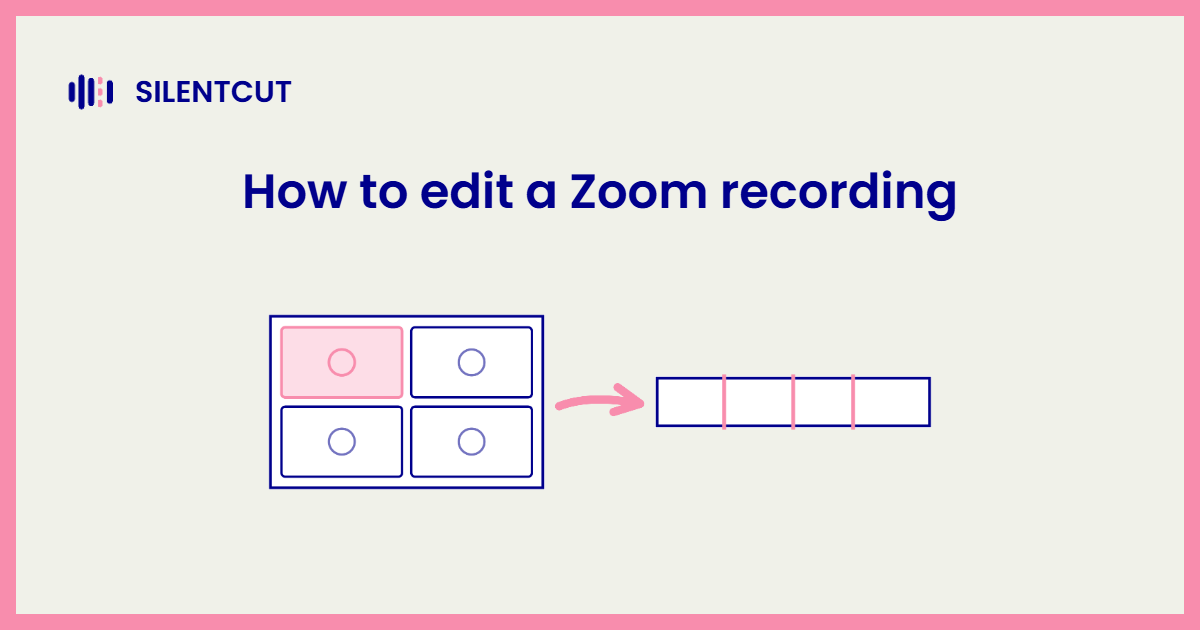
The dead weight is structural. Waiting for attendees, the screen-share fumbling, the pause while someone finds the right tab, and all the ums of completely unscripted talk. Filler goes first. Speech Cleanup strips the ums, stutters and false starts automatically. Then Silence Remover sweeps the dead air, including the fresh gaps the filler cuts just left, with sensitivity and minimum gap length under your control so a natural beat survives. That's SilentCut, and meeting footage is exactly the material it gives the biggest hours back on. That's the honest answer to how to edit a Zoom recording. Delete relentlessly, and what's left starts looking like content.
Caption the clean cut, then carve the clips
Captions go on after the cut locks, and the tightened cut is also what you carve clips from.
Caption the raw meeting and the captions transcribe every um you were about to delete, so the auto captions pass waits for the clean cut. From there, a strong answer or demo moment becomes a standalone clip, and vertical versions come from Auto Reframe rather than manual cropping. The same order as every other edit, and the full pipeline is worth running the same way every week your meeting recurs.