Premiere Pro transcription is built in, runs from the Text panel, and turns a talking video into an editable transcript in a few minutes. People still search transcribe Premiere Pro expecting a plugin recommendation. There isn't one to give. Speech to Text ships with the app, and the whole workflow, generate, correct, export, lives in one panel. Adobe calls the app plain Premiere these days, and Premiere transcription is the same Speech to Text under either name.
How to transcribe in Premiere Pro
To transcribe in Premiere Pro, open the Text panel and generate a transcript from the Transcript tab.
- Open the Text panel. It's under Window in the menu bar if it isn't already docked.
- In the Transcript tab, start a transcription for your sequence.
- Pick the spoken language in the dialog. English ships with the install, and other languages show a download icon in the Language dropdown, one click and the language pack installs.
- Turn on speaker separation if more than one person talks. Premiere labels the voices so the transcript reads like a script.
- Let it run, then read the result. Click any line and the playhead jumps there, fix a misheard word and the fix sticks everywhere the transcript goes next.
That last behavior is the point of correcting in the transcript rather than downstream. One fix here beats the same fix made twenty times in captions later.
The transcript also lays your retakes out in plain text. The intro you recorded four times reads as four near-identical lines, stacked, and Best-Take Selector is built for exactly that moment. It lines the takes up, you keep one, the rest get cut before the transcript ever becomes captions.
Export the transcript
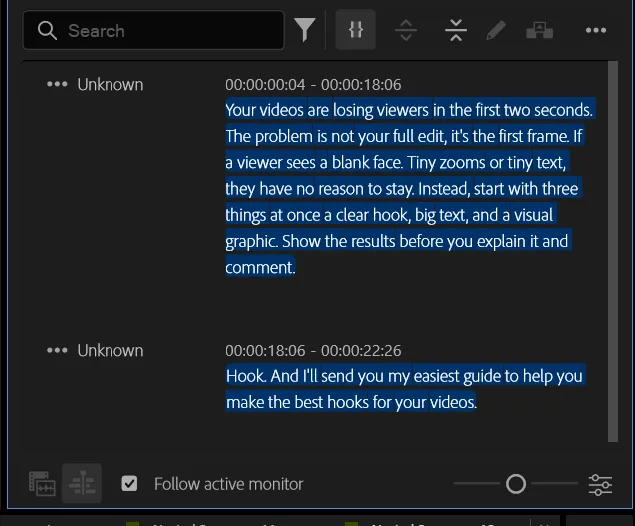
The transcript exports from the Transcript tab's menu, as a file you can hand to anyone.
Open the ellipsis menu in the Transcript tab, choose Export, and pick the format. A plain text transcript covers show notes, quotes and blog drafts. And if what you actually want is captions on the video, that's the same transcript pushed one step further. The auto captions workflow picks up exactly where this one ends.
Premiere Pro transcription not working? Run these checks
When Premiere Pro transcription comes back empty, garbled or stuck, the cause is almost always one of four things.
- The wrong language, or a missing pack. The transcription language has to match the speech, and a language that was never downloaded can't transcribe anything. Check the Language dropdown for a download icon, and the Media Analysis & Transcription section of Preferences for how analysis is set up.
- Music is drowning the dialogue. Transcription analyzes the sequence's audio, so a loud music bed buries the words. Disable or mute the music tracks, run the transcription, then bring the music back.
- The audio is too quiet. A recording that peaks barely above the noise floor gives Speech to Text nothing to grab. Boost the gain on the dialogue first.
- The app is stale. Speech to Text improves version over version, and a transcription that hangs on an old build often just works after an update.
Re-run the transcription after each change rather than after all of them, so you know which check was the fix.
The transcript shows you the cleanup pass
Read your own transcript once and the filler jumps out in a way playback hides.
Every um on its own line, every false start, every four-second gap between thoughts. The transcript is an inventory of everything between you and a tight cut. That inventory is exactly what Speech Cleanup works through, fillers, stutters, abandoned sentences, while Silence Remover cuts the dead air around them. SilentCut for Premiere Pro lands those cuts on the same timeline you just transcribed. Clean cut, clean transcript, clean captions, in that order.