Latest release.
1. Install
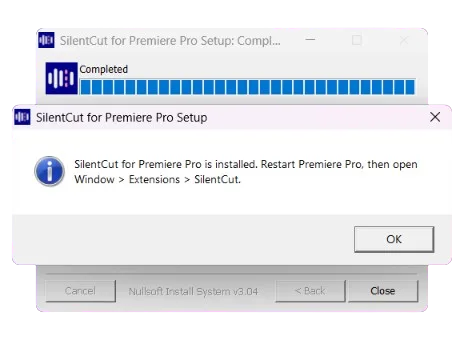
Run the setup, then restart Premiere Pro.
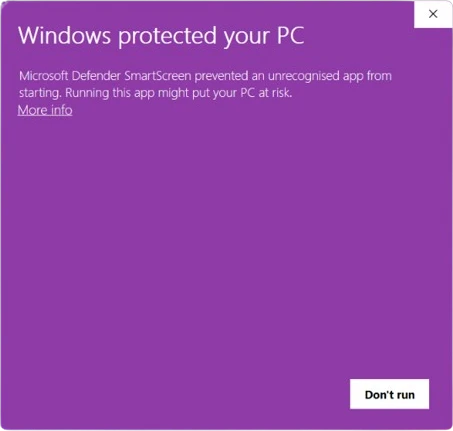
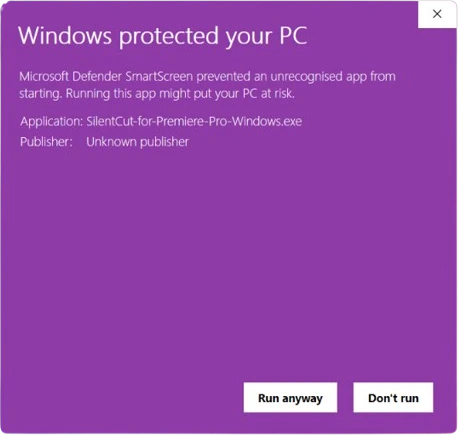
If your browser says the file isn't commonly downloaded, keep it. If Windows says "Windows protected your PC", click More info, then Run anyway.
On a Mac, open the .pkg, click through the installer and enter your Mac's password when it asks.
2. Open the panel
Window > Extensions > SilentCut.

3. Paste your API key
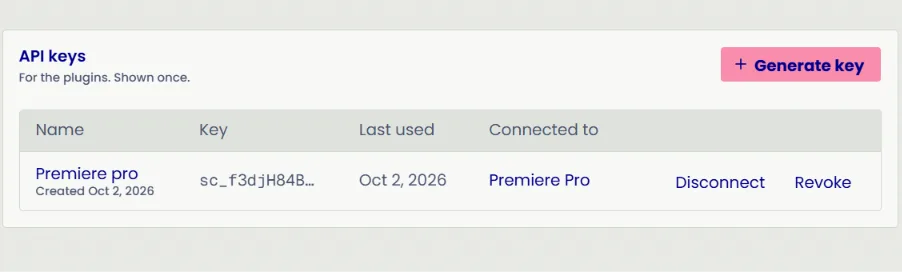
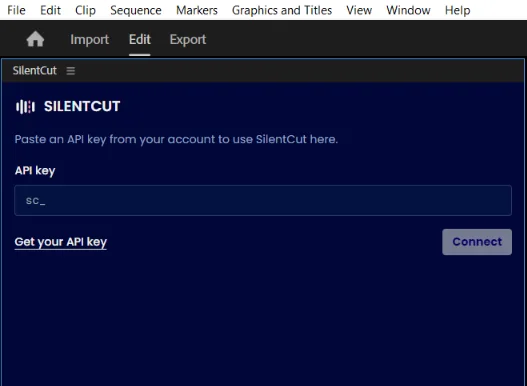
Make a key on your account page, paste it, Connect.
4. Run a tool
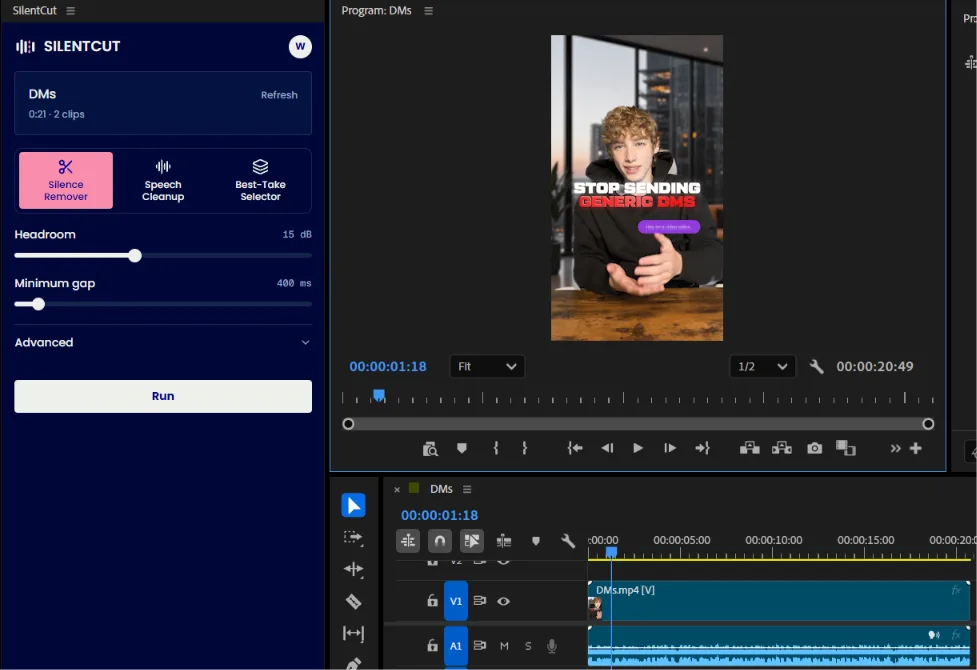
Open a sequence, pick a tool, Run.
5. Review
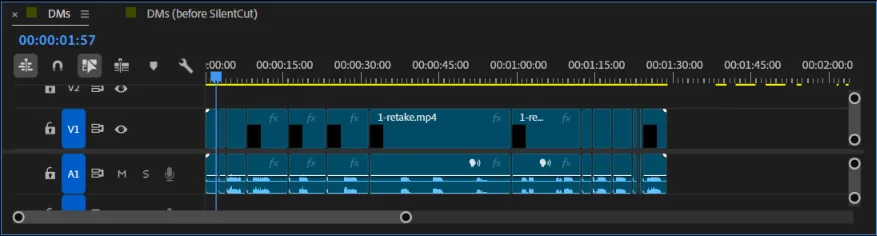
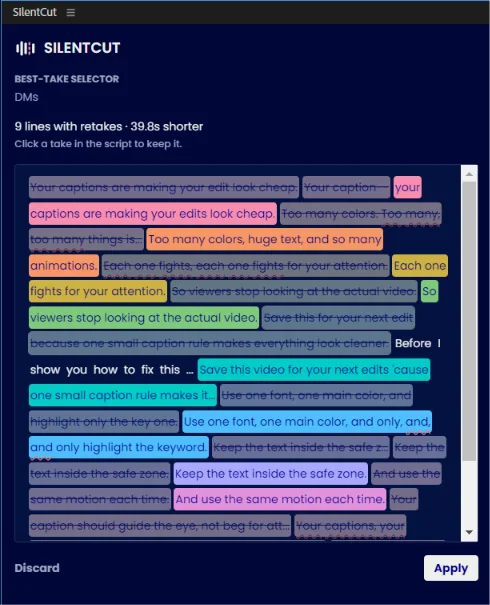
Fillers and takes are highlighted in the script and marked on the timeline. Double-click a word to cut or keep it, click a take to keep it.
6. Apply
Apply cuts the sequence. Restore puts it back.